How to Use MobiMatter eSIM: Install, Activate & Set Up

Check compatibility, choose the right activation rule, install on Wi-Fi, set the travel line for data, enable roaming for it — and keep your home line for calls.

Get a plan + 50% cashback

How to use MobiMatter eSIM: first check that your phone is both eSIM-compatible and unlocked. Then choose a plan whose activation rule suits your trip, install it on reliable Wi-Fi, select it as your mobile-data line after arrival, turn on data roaming for the travel eSIM, and enter an APN only if the plan gives you one. Keep your home line for calls and SMS, but switch its data roaming off.

That is the safe order. Most setup problems happen because somebody scans the QR code before reading when the validity starts, leaves the home SIM as the data line, or turns on roaming for the wrong line.

Last verified: 15 July 2026 against MobiMatter’s public Help Centre and terms. Menu names can differ slightly by phone model, country and software version.

Editorial and affiliate disclosure: ESIMDUDE may earn a commission from some links. This does not affect the price you pay or the setup advice below.

Jump to: Before you buy · Install on iPhone · Install on Samsung · Set up data after arrival · FAQs

Step 0

Before you buy

Do these checks before you pay. They take a few minutes and can stop a stressful airport problem later.

1. Confirm eSIM support and unlock

An eSIM-capable phone still needs to be unlocked from its home carrier. On iPhone, open Settings > Cellular and look for Add eSIM; dial *#06# for an EID; check Settings > General > About > Carrier Lock (“No SIM restrictions” = unlocked).

On Samsung use Settings > Connections > SIM Manager; on Pixel use Settings > Network & Internet > SIMs. Some Samsung models restrict eSIM by region, so your phone settings are more reliable than a device list. If the phone is carrier-locked, ask the home carrier to unlock it — an eSIM cannot bypass a lock.
2. Read the plan card, not just the name

MobiMatter is a marketplace, so the same country can show plans from different providers. Before adding to basket check: coverage for every country on your route; data and validity; the activation policy (on installation, first connection, or first data use); 4G/5G availability; hotspot rule; whether calls/SMS are included (many are data-only); and top-up support. The product description beats any general rule.

3. Use the ESIMDUDE code correctly

ESIMDUDE is not an instant 50% discount. For an eligible new customer’s eligible first purchase, it gives 50% cashback up to $5 as future MobiMatter Rewards credit. Sign in → choose the right plan → Buy now → open Reward Options → choose Referral Bonus → enter ESIMDUDE → check the treatment before paying. Referral incentives cannot be combined with another promotion, and Rewards are not cash or transferable.

Do not choose a larger or more expensive plan just to earn a slightly larger reward. If you have not selected a plan yet, start with the MobiMatter coupon page and compare the plan details before looking at the reward.

The order that avoids most mistakes

How to use MobiMatter eSIM: the safe setup order

Installing an eSIM and activating a package are not always the same thing, so the sequence matters.

  1. Confirm compatibility and carrier unlock.
  2. Read the product’s activation policy and APN instructions.
  3. Buy the plan and save the confirmation details.
  4. Install the profile while you have stable Wi-Fi.
  5. Label your home and travel lines clearly.
  1. At the destination, set the MobiMatter line as mobile data.
  2. Turn data roaming on for the MobiMatter line, not the home line.
  3. Check the APN only if the plan says it needs manual configuration.
  4. Turn Wi-Fi off briefly and test maps or a browser.
  5. Track usage in My eSIMs, then top up only if your operator supports it.

The step that needs extra attention is installation. MobiMatter recommends installing shortly before travel and leaving the eSIM switched off until arrival, but this is only safe when the package does not begin on installation. If the product says “activation upon installation”, wait until you want the validity to start.

Apple

Install a MobiMatter eSIM on iPhone

There are two sensible ways: direct installation from the MobiMatter app, or scanning the QR code shown on another screen. In-app installation is normally simpler because you do not need a second device.

Option A: install through the MobiMatter app

1

Connect to strong Wi-Fi

2

Open the app & sign in

Use the same email address used for the order.

3

Go to My eSIMs → open the eSIM → tap Show QR Code or Install eSIM

Follow the iPhone prompts until the profile is added.

Option B: install with a QR code

1

Put the QR code on a second device

2

Open Settings > Cellular → Add eSIM → Use QR Code

Scan the code and follow the prompts. Do not delete the QR code, email or order details — some eSIMs are one-time downloads.

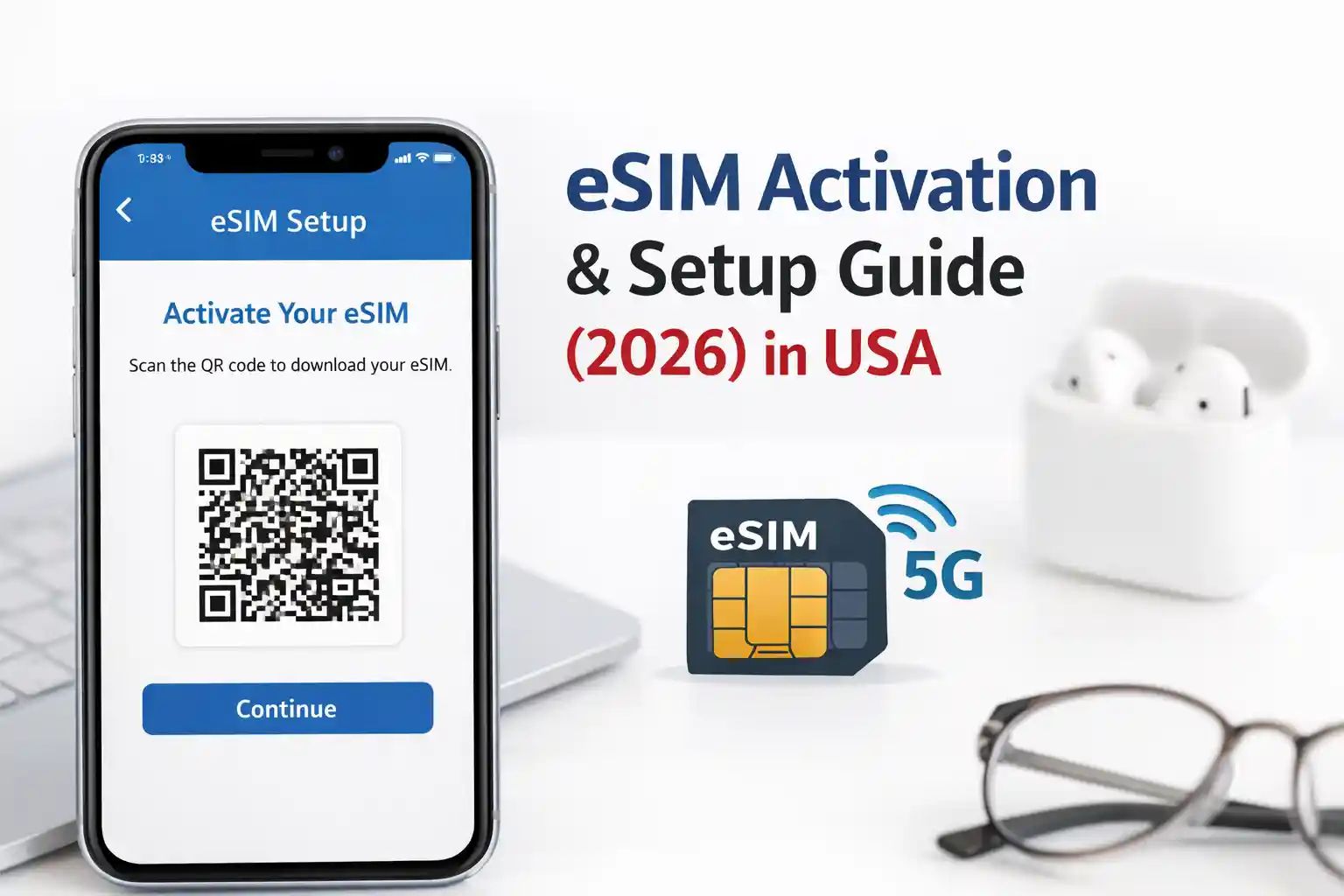
Scanning a travel eSIM QR code to install a MobiMatter profile on a phone

Label the lines before you travel

When iPhone asks you to label the new plan, call it something plain such as MobiMatter Italy or Travel Data, and rename the home line Home. This makes arrival setup safer. If the iPhone says “Unable to Activate” while you are still at home, do not panic — an installed travel eSIM can show that status while waiting to reach a supported network. Check whether the new line already appears in Settings > Cellular and in My eSIMs before rescanning.

Android · Samsung

Install a MobiMatter eSIM on Samsung

1

Connect to stable Wi-Fi

2

Open the app → My eSIMs → Show QR Code / Install eSIM

3

Settings > Connections > SIM Manager → Add eSIM → Scan QR Code

Scan the code on another screen, then confirm installation.

4

Name the line, keep it off until timing allows

A plan that begins on first connection can usually be installed before leaving, then left off until arrival. A plan that begins on installation should be handled later.

Samsung APN setup — only if your plan tells you to

Most eSIMs fill in the APN automatically. If your product info or confirmation email gives a manual APN, use those exact values: Settings > Connections > Mobile Networks > Access Point NamesAdd/New → enter the provider name and APN exactly → save and select it. Never copy an APN from another article, forum or a different MobiMatter plan.

Android · Google

Set up a MobiMatter eSIM on Google Pixel

On a Pixel, labels are usually under Settings > Network & Internet > SIMs. Confirm the new eSIM is turned on, select it as the mobile-data line, turn data roaming on for that travel eSIM when you arrive, then turn Wi-Fi off for a moment and test the connection.

If the Pixel also holds your physical home SIM, keep the two lines easy to tell apart. The travel line should handle mobile data; the home line stays as the voice and SMS line, which keeps WhatsApp tied to your existing number and helps you receive verification texts (subject to your home carrier’s roaming rules).

The moment it goes live

Set up mobile data after arrival

On iPhone

  1. Settings > Cellular → Mobile Data → choose the MobiMatter travel line.
  2. Tap the MobiMatter line and turn Data Roaming on.
  3. Keep your home line as the default voice line if you need calls or SMS.
  4. Tap your home line and make sure its Data Roaming is off.
  5. Turn Wi-Fi off briefly; toggle Airplane Mode once, then wait a minute.

On Samsung / Android

  1. Settings > Connections > SIM Manager → turn the MobiMatter eSIM on and set it as the preferred Mobile Data SIM.
  2. Connections > Mobile Networks → turn Data Roaming on for the travel eSIM.
  3. Check the APN only if the product details ask you to set one.
  4. Turn Wi-Fi off briefly and wait for the phone to find a network.

This dual-SIM setup is the cost-control part: keep the home line active for calls/SMS, use the travel eSIM for data, switch data roaming off on the home line and on for the MobiMatter eSIM.

NEED A PLAN BEFORE YOU FLY?

First confirm your device and activation timing, then compare plans. For an eligible first order, enter ESIMDUDE through Reward Options for 50% cashback up to $5 as future Rewards credit.

See compatible MobiMatter plans

Check that the eSIM is working

  1. Turn Wi-Fi off.
  2. Open a browser, maps app or messaging app.
  3. Check the status bar shows a mobile signal.
  4. Open MobiMatter → Profile > My eSIMs → select the package to view its data usage.

Do not judge a plan by the first five seconds — give it a minute to register on the local network. If it still has no data after checking the data line, roaming and the required APN, review your settings step by step before contacting support.

Add more data or manage your plan

If your plan supports a top-up, open Profile > My eSIMs, select the eSIM and tap Top Up. On the website, choose a package from the same operator and enter the correct order number. A top-up is a separate package with its own validity; it does not automatically lengthen the original package. That is why it is worth choosing the right plan at the start — a cheap 3 GB package is not always a good deal if you know you need 15 GB.

Avoid these

The setup mistakes to avoid

If any of those have already happened, do not make more changes at random. Take a screenshot of the error, the eSIM status and the phone’s data settings, then use MobiMatter’s support wizard.

Answered

MobiMatter eSIM setup FAQs

Install shortly before travel only after reading the package’s activation policy. Some plans begin on installation and others on first connection to a supported destination network. If the plan begins on installation, wait until you want the validity clock to start.

Usually, yes. Turn data roaming on for the MobiMatter travel eSIM after arrival, and off for the home line. This does not mean you are using your home carrier’s roaming data; it lets the travel eSIM connect to its local partner network.

An eSIM can be installed but waiting for a supported destination network. Check the plan’s activation rule, keep the line off until arrival if appropriate, and do not rescan the QR code unless support tells you to. A status message does not always mean the installation failed.

Yes, on a dual-SIM-capable unlocked phone. Keep the home line active for calls and SMS if needed, set MobiMatter as the mobile-data line, turn home-line data roaming off and travel-eSIM data roaming on. WhatsApp remains tied to your existing phone number unless you change it inside WhatsApp.

Only if the plan’s product information or confirmation email tells you to. Most plans set it automatically. Never borrow an APN from a different provider or destination.

No. For an eligible new customer’s eligible first purchase, ESIMDUDE gives 50% cashback up to $5 as future MobiMatter Rewards credit. It is not cash, not an instant price reduction, and it cannot be combined with another referral incentive or promotion. Confirm the current checkout treatment before you pay.

Final checklist

Final setup checklist

Before boarding: verify eSIM support and carrier unlock, read the activation policy, install on reliable Wi-Fi only if the timing is safe, label both lines and keep the QR/order details.

After landing: select MobiMatter for mobile data, turn on data roaming for that line, turn off data roaming for the home line, check the APN only if required and test with Wi-Fi off.

Once connected: track data in My eSIMs and top up only where the plan permits it.